
Parrot Assistant Android App 🦜
Parrot Assistant brings powerful AI capabilities to your Android device with Side Panel Shortcuts and AI Voice Keyboard—two features that supercharge your mobile experience.
Side Panel Shortcuts - Swipe from screen edge for instant access to camera, media controls, and touch cursor.
AI Voice Keyboard - Type with your voice in any app with high-accuracy speech recognition.
Note: AI features require HuBrowser Membership.
Download on Google PlayDemo Videos
Why Use Parrot Assistant? ✨
- Instant access 🎯: Swipe from screen edge for quick actions
- Voice typing anywhere 🎤: High-accuracy speech recognition in any app
- One-hand friendly 👍: Perfect for large screens and single-hand operation
- Privacy-first 🔒: No data collection—everything runs locally
- Ultra-lightweight 🪶: Minimal resource usage with smart caching
- Beautiful design 🎨: Gradient buttons, dark mode, smooth animations

🎯 Side Panel Shortcuts
Swipe from the edge of your screen to instantly access 9 powerful tools:
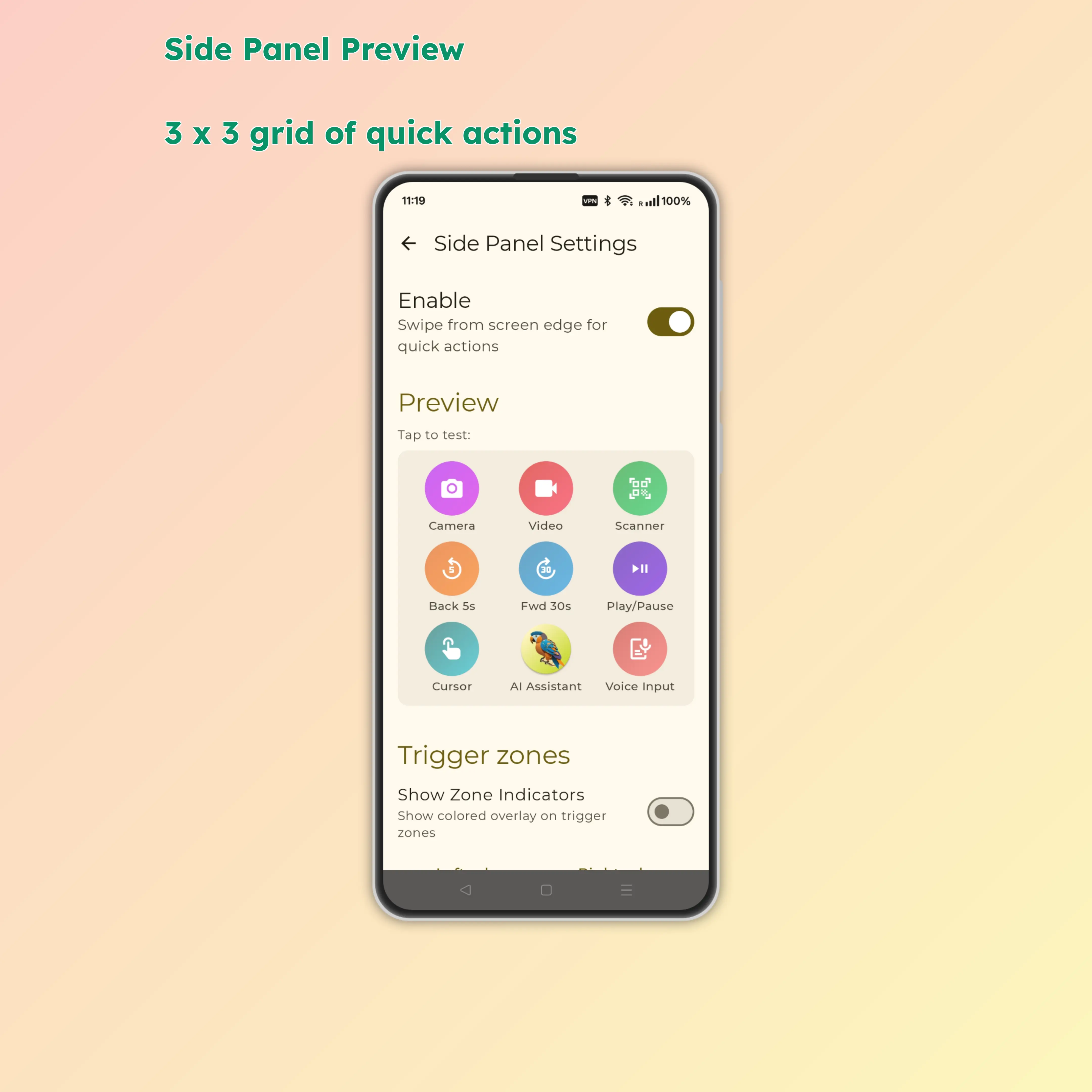
How to Use
- 👆 Swipe inward from the screen edge
- 🎯 Panel automatically appears with action buttons
- ✋ Hover over a button and release to activate
Configure the trigger zone
Trigger Zone Settings:
- 📍 Choose trigger edge (left/right)
- 📏 Adjust trigger zone height
- 📐 Configure trigger zone position
- 🎯 Real-time preview

Core Features
- Smart anti-accidental touch: Only activates when you swipe from the edge inward
- One-hand operation: Swipe, hover, release to activate
- Auto-hide: Automatically hides after 3 seconds to avoid interfering with normal use
- Single action completion: Complete actions with one swipe, no repeated interactions needed
- Real-time preview: Hovering displays the current button icon in the top-left corner—know which function is selected without looking at the side panel
- Progressive feedback: Vibration and sound help you distinguish between actions
- 📳 Progressive vibration feedback (buttons farther from edge vibrate stronger)
- 🎶 Each button uses phone dial tones 1-9 for audio cues
📷 Row 1: Camera & Scanning
📸 Photo
- Quick photo capture
- Can use without unlocking
- No tracking, works offline
🎥 Video Recording
- One-tap video recording
- Convenient for capturing important moments
- No tracking, works offline
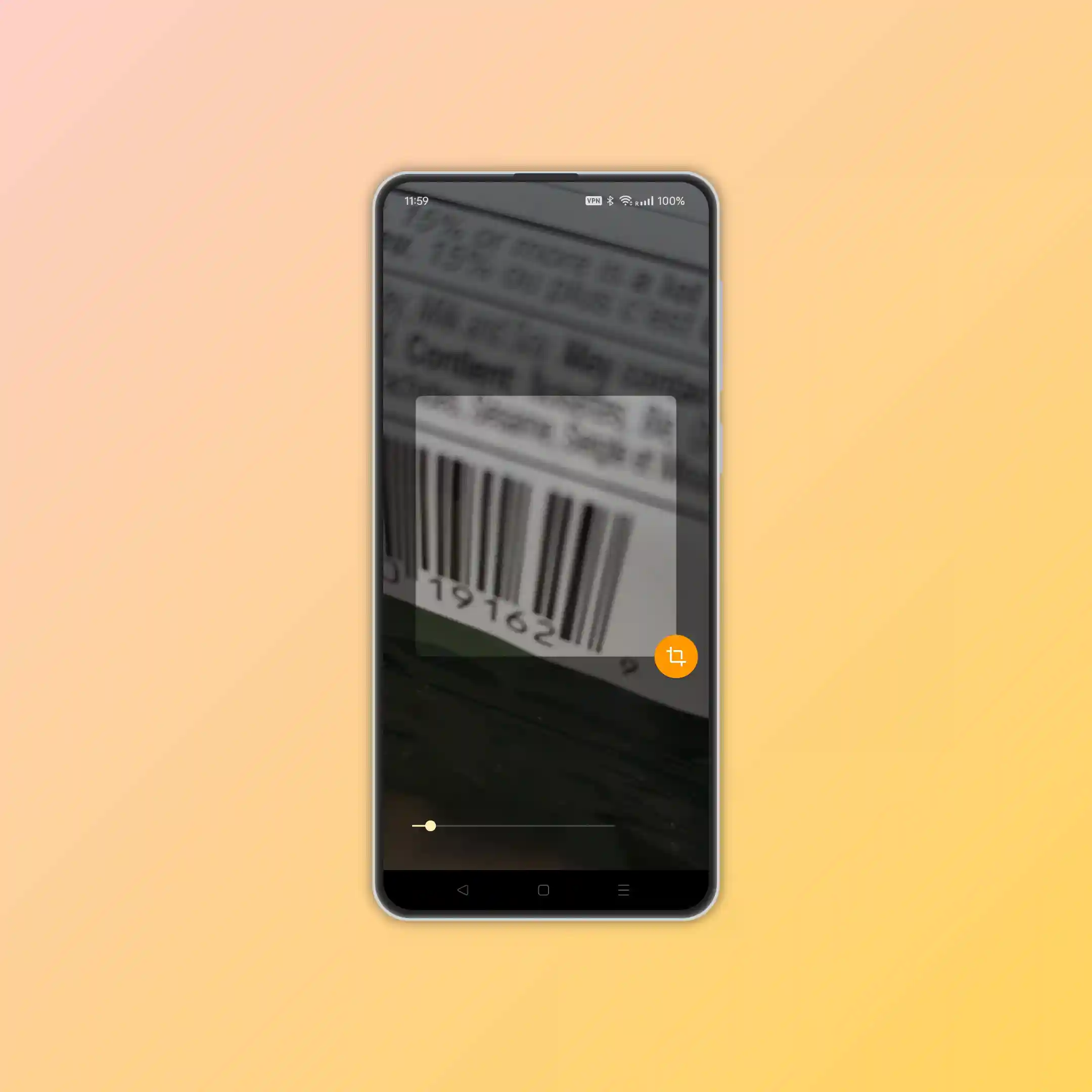
🔍 QR/Barcode Scanner
- 🦜 Super simple app for quick QR code and barcode scanning
- ⏩ Automatically opens links or searches content
- ⭕ No tracking, no ads, works offline
- ⚡ Optimized with HuBrowser for fastest performance
- Supports text search (including Chinese search engines)
- Supports landscape and portrait modes
🎵 Row 2: Media Controls
⏪ Rewind
- Rewind 10 seconds
- Works with podcasts, music, videos
- Global control, no need to open the app
⏩ Fast Forward
- Forward 10 seconds
- Skip parts you don't want to hear
- Global control, no need to open the app
⏯️ Play/Pause
- Control any playing media
- Supports music, videos, podcasts, etc.
- Long press to open the playing app (hover for 0.8 seconds)
Media Control Features:
- 🎧 Global control, no need to open apps
- 📱 Supports all major media apps
- ⚡ Quick response, no lag
- 🔄 Long press to quickly switch to player interface
🤖 Row 3: Screen Operations
🖱️ Touch Cursor
Convenient for one-hand operation on large phones/tablets/TVs:
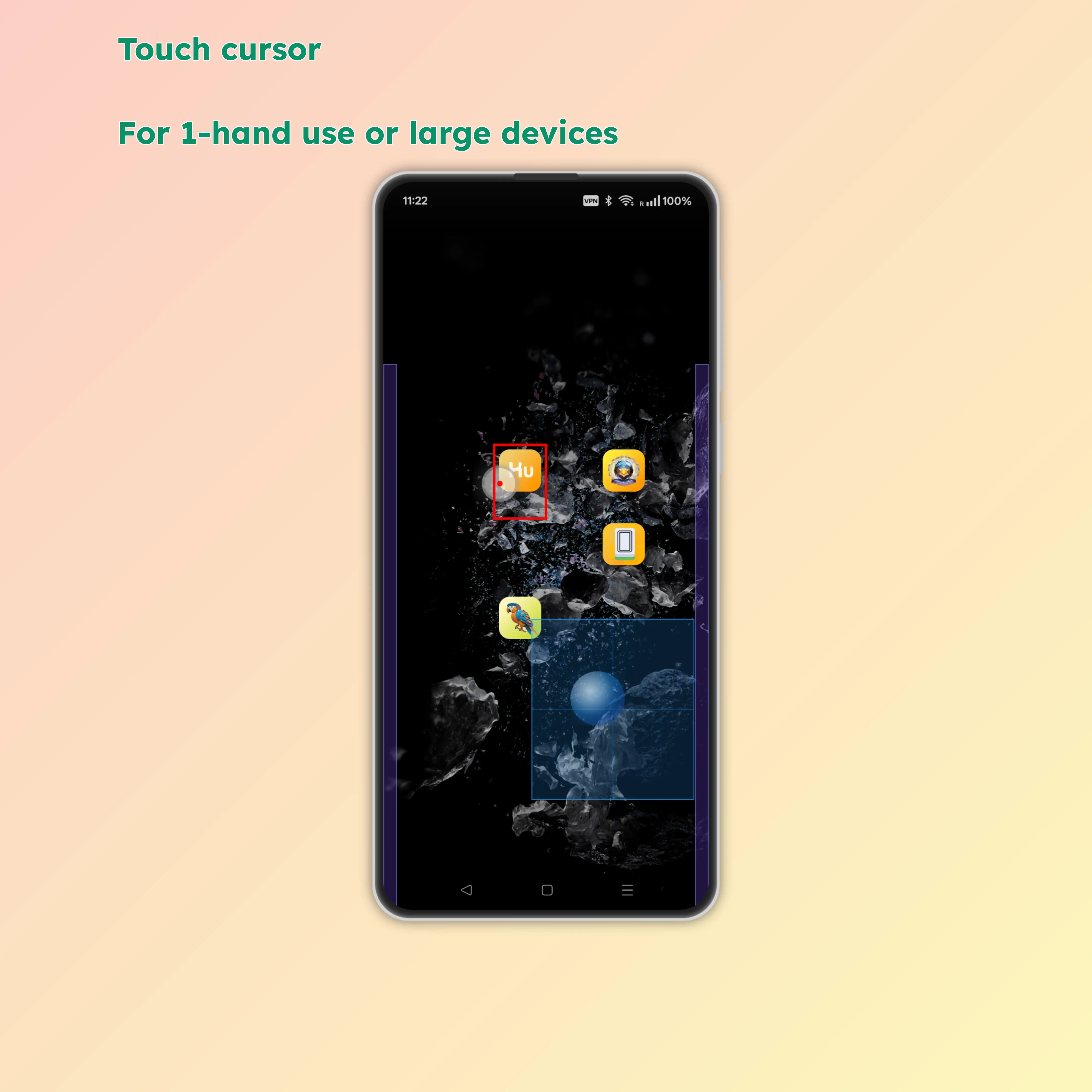
- 3 components:
- Blue trackball: Controls cursor position
- Blue box: Acts as a virtual touchpad (trackball position corresponds to screen position)
- Red cursor: Shows current click position
- Click effects:
- Click trackball: Clicks at the red cursor position
- Click inside blue box: Trackball and red cursor move to the corresponding position
- Operations outside blue box: Not affected
- Ergonomic design: One thumb can easily move the cursor anywhere
- Exit: Auto-exits after 3 seconds of no trackball operation (adjustable)
- Smart highlighting: When enabled, highlights clickable buttons with red borders
🦜 AI Assistant Automation
- Quick access to AI assistant
- Voice interaction, intelligent dialogue
- Get help anytime, anywhere
AI Assistant Examples:
- Say "select text" - All text on screen becomes instantly recognized and copyable
- Say "open [app name]" - Natural language understanding to open any app instantly
- Examples: "open Chrome", "open WhatsApp", "open Settings"
- Voice commands for smart automation and control
🎤 Voice Input
- Quickly activate AI keyboard for voice input in any app
- See AI Voice Keyboard below for details
🎤 AI Voice Keyboard
Type with your voice in any app with high-accuracy speech recognition.
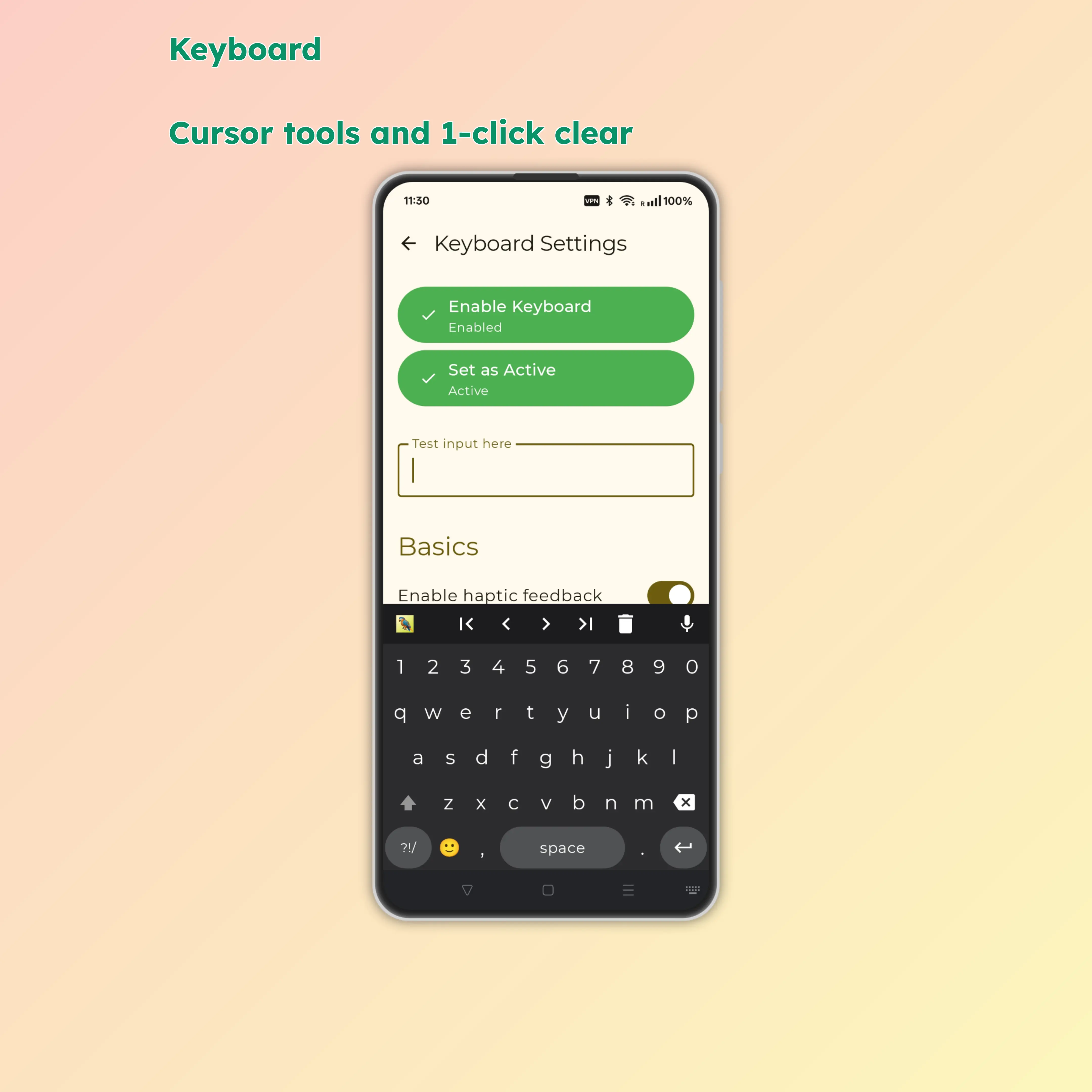
Core Features
- Universal input: Works in any app that accepts text
- High accuracy: Advanced speech recognition engine
- Real-time transcription: See your words appear as you speak
Smart Input Features
🎤 Voice Input
- Tap the microphone button in the top-right corner of the keyboard to start recording
- Speak clearly what you want to type
- Text automatically appears in the input field
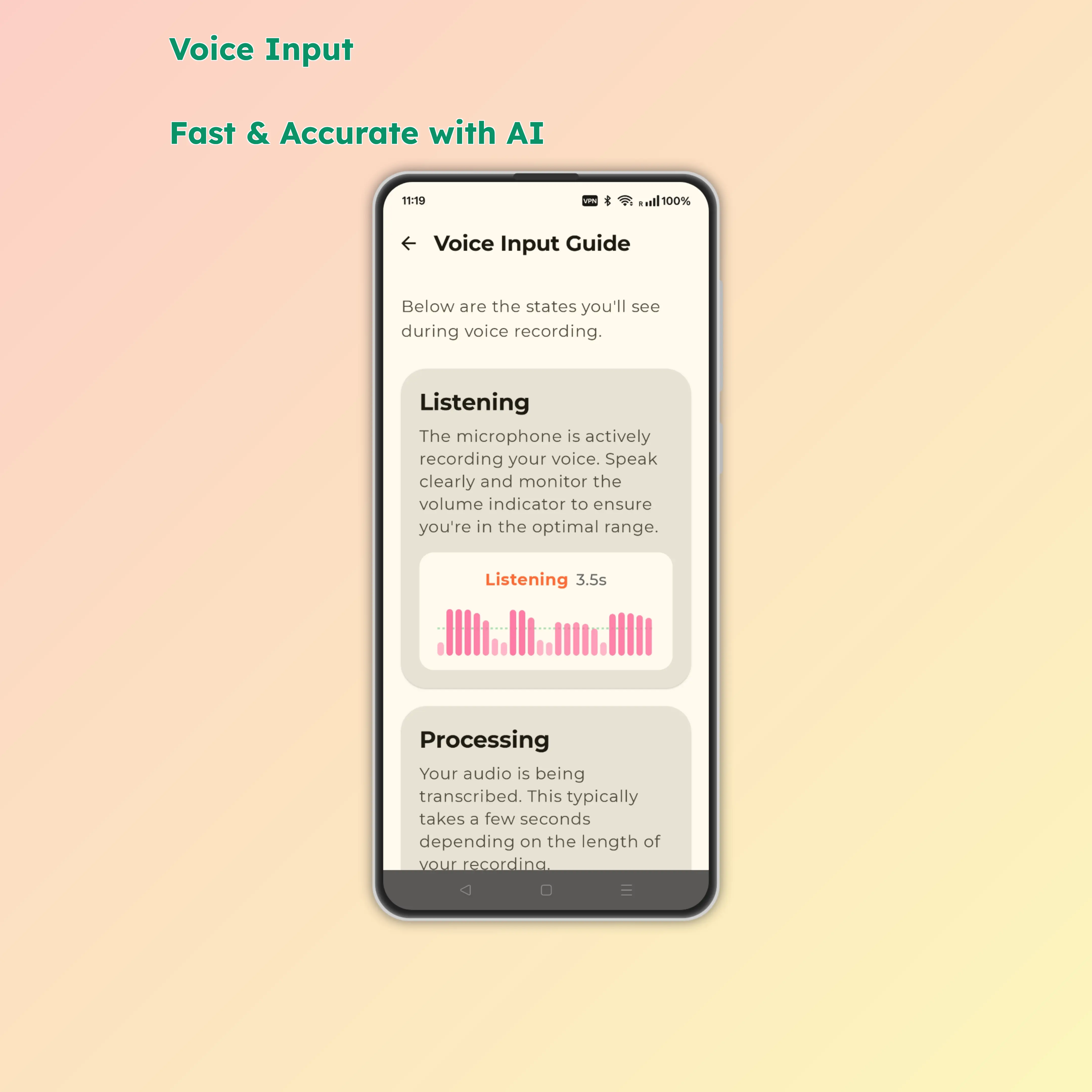
- Real-time volume indicator shows recording status
- Supports long text recording with automatic upload for transcription
Voice Input States:
- 🎙️ Listening - Recording in progress, shows volume waveform
- ⚙️ Processing - Uploading and transcribing audio
- ✅ Complete - Successfully finished
- ❌ Error - Failed with error message
⌨️ Cursor Control
Built-in smart cursor navigation for easy text editing:
- Arrow keys: Precisely move cursor up, down, left, right
- Word jumping: Quickly move between words
- Line start/end: Jump to beginning or end of line with one tap
- Text selection: Select text with Shift key
🧹 Smart Delete
- Backspace key: Delete single characters
- Swipe to delete words: Swipe left on the backspace key to delete entire words instead of single characters
- Clear button: One-tap to clear all text in the current input field
😊 Emoji Keyboard
- Quick access to commonly used emojis
- Browse by category, easily find the emoji you need
- Recent usage history, frequently used emojis one tap away
🔢 Special Character Quick Input
- Long press number keys: Quickly input corresponding special characters
- Long press
1→! - Long press
2→@ - Long press
3→# - Long press
4→$ - Long press
5→% - Long press
6→^ - Long press
7→& - Long press
8→* - Long press
9→( - Long press
0→)
- Long press
- No need to switch to symbol keyboard, improves input efficiency
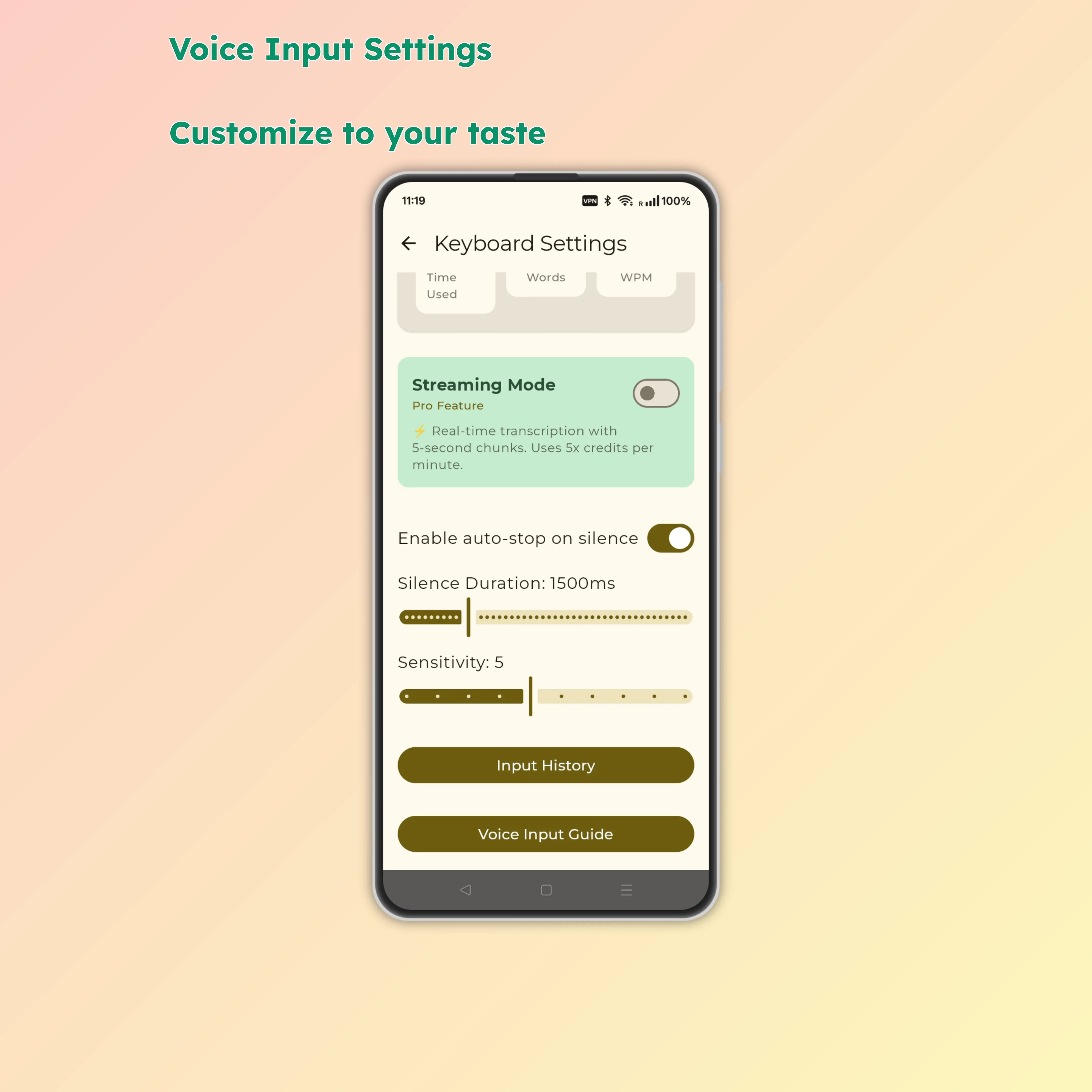
Real-time Typing Speed and Quota Display
- Exclusive for HuBrowser members
- View 24-hour voice record locally
How to Enable
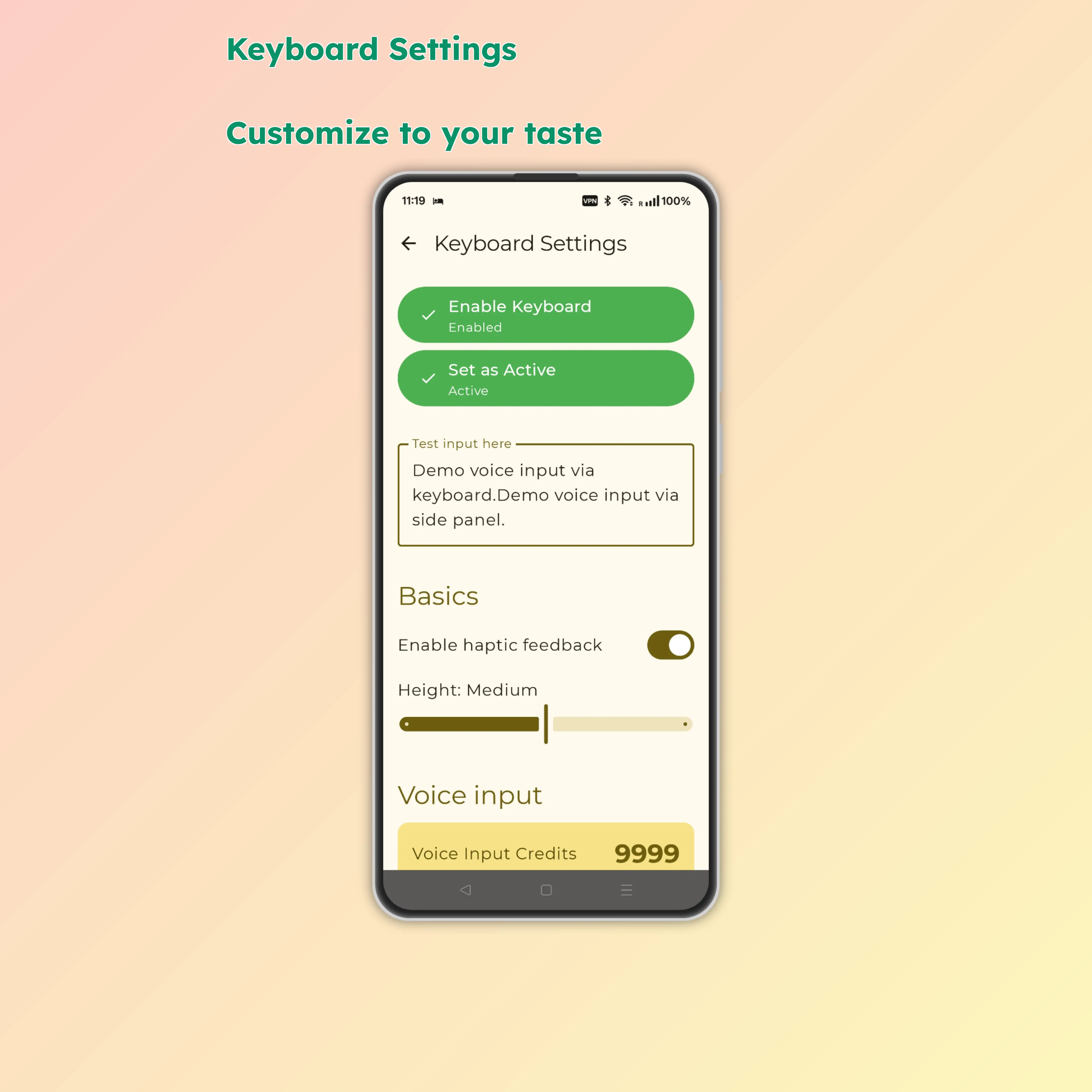
- Settings → Languages & Input → Virtual Keyboard
- Select Parrot Keyboard
- Use it like any other keyboard
Required Permission: Microphone (for voice recognition only)
💡 Usage Tips
- Clear pronunciation: Works best in quiet environments
- Natural speech: Speak normally, no need to pause deliberately
- Punctuation: Automatically added, or say "comma", "period", etc.
- Long texts: Supports long recording, auto-stops and uploads
- Quick word deletion: Swipe left on backspace to quickly delete entire words
- Special characters: Long press number keys for quick symbol input, no need to switch keyboards
🤖 Made for Android
Parrot Assistant is built from the ground up specifically for Android, utilizing native Android features and APIs to deliver the best possible experience.
⚙️ Permissions Required
Initial Setup:
- The app will guide you through enabling the necessary permissions
Permission Explanation:
- Accessibility Service 🔐 - Side Panel swipe detection and global shortcuts (only activates when swiping from edge inward)
- Microphone 🎤 - AI Voice Keyboard speech recognition (only when actively using voice input)
- Camera 📷 - QR/barcode scanning (only when explicitly opening the scanner)
🎨 Interface & Experience
Parrot Assistant adopts Material Design 3 language, providing a refined and smooth user experience:
Visual Feedback
- 🌈 Gradient buttons, beautiful and recognizable
- 💫 Button zoom animation on hover
- 🔍 Real-time icon preview of currently hovered button in top-left corner
- 🌙 Dark mode support
Smart Optimization
- ⚡ Doesn't block other operations, smooth usage
- 🎯 Fast response, instant use
- 🔄 Smart background updates
- 🛡️ Automatically filters interference elements
🔐 Privacy & Security
Your privacy is our top priority. Parrot Assistant is designed with privacy-first principles:
- Zero tracking: No analytics, no telemetry, no user profiling
- No data collection: We don't collect any personal information
- Minimal permissions: Only essential permissions for core features
- Offline capable: Most features work without internet connection
- Open about permissions: Clear explanation of why each permission is needed
🎉 Summary
Parrot Assistant perfectly combines powerful AI voice recognition, convenient side panel, and practical scanning features to provide a comprehensive intelligent assistant experience for your Android device!
Core Advantages:
- ⚡ Fast: Edge swipe, instant access
- 🎯 Precise: AI-powered, accurate recognition
- 🎨 Beautiful: Material Design, visually pleasing
- 🔧 Powerful: Multi-feature integration, all-in-one
- 🔋 Battery-friendly: Optimized for low power consumption
Start using now to make your phone smarter! 🚀
Coming Soon 🚀
- More Side Panel shortcuts and customization
- Additional voice keyboard languages
- Custom vibration patterns
- User-defined quick actions