
🤖 Extensions on android
This page covers Android‑specific tips and FAQs for using extensions in HuBrowser.
✅ What you get
- Install directly—no Edge/Yandex‑style workarounds
- Touch/small‑screen friendly; some extensions may still require developer updates
📥 How to install extensions
- Open the three-dot menu in the upper-right corner.
- Tap “Extensions” to enter the extensions page.
- Choose an install method on the extensions page:
- Tap “Go to store ->” to open the Chrome extension store and install an extension.
- Or load a local extension package.
👉 How to use extensions
- After installing, tap the top bar’s extensions button to open the menu:
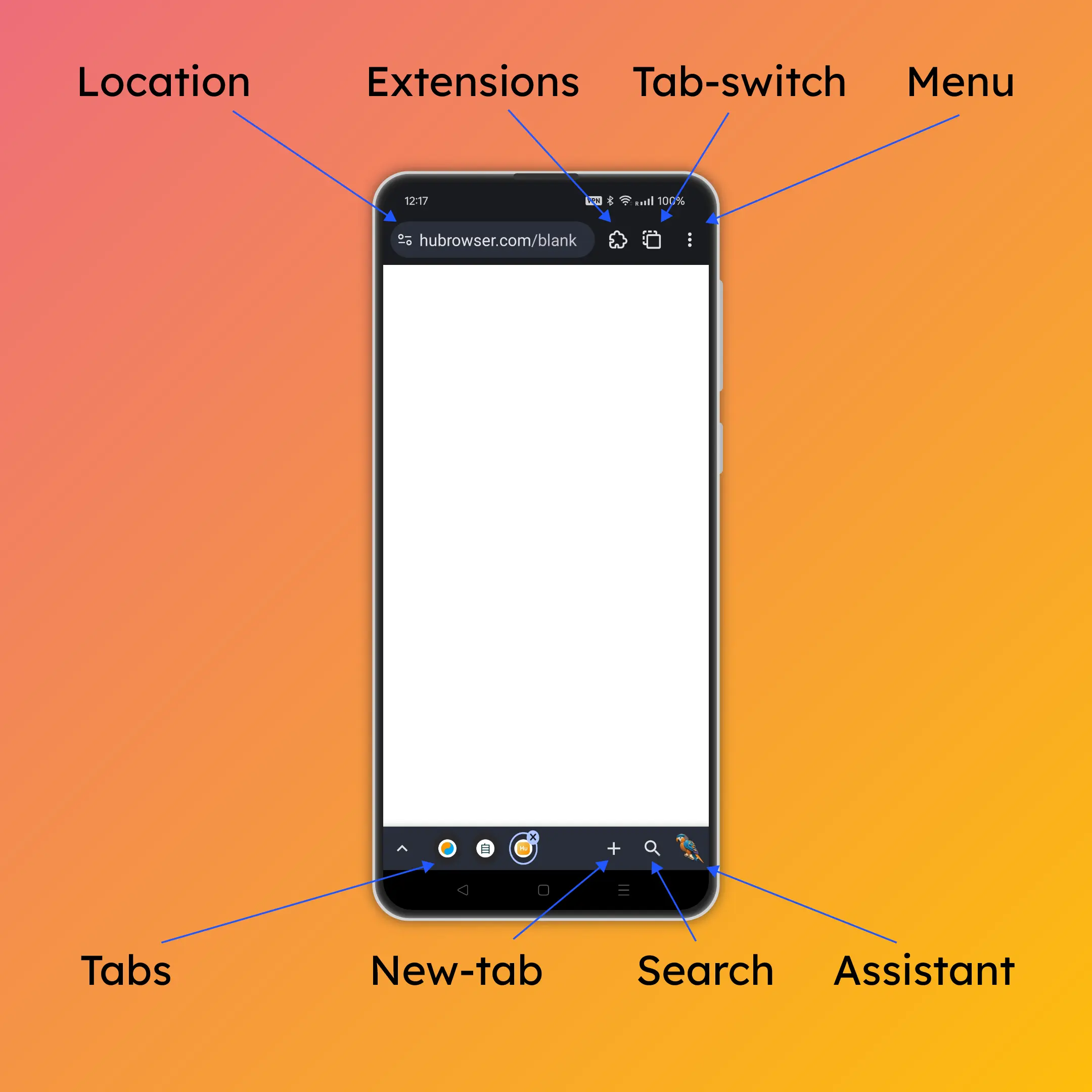
- Tap an extension icon to open it
- If the extension shows a popup at the bottom:
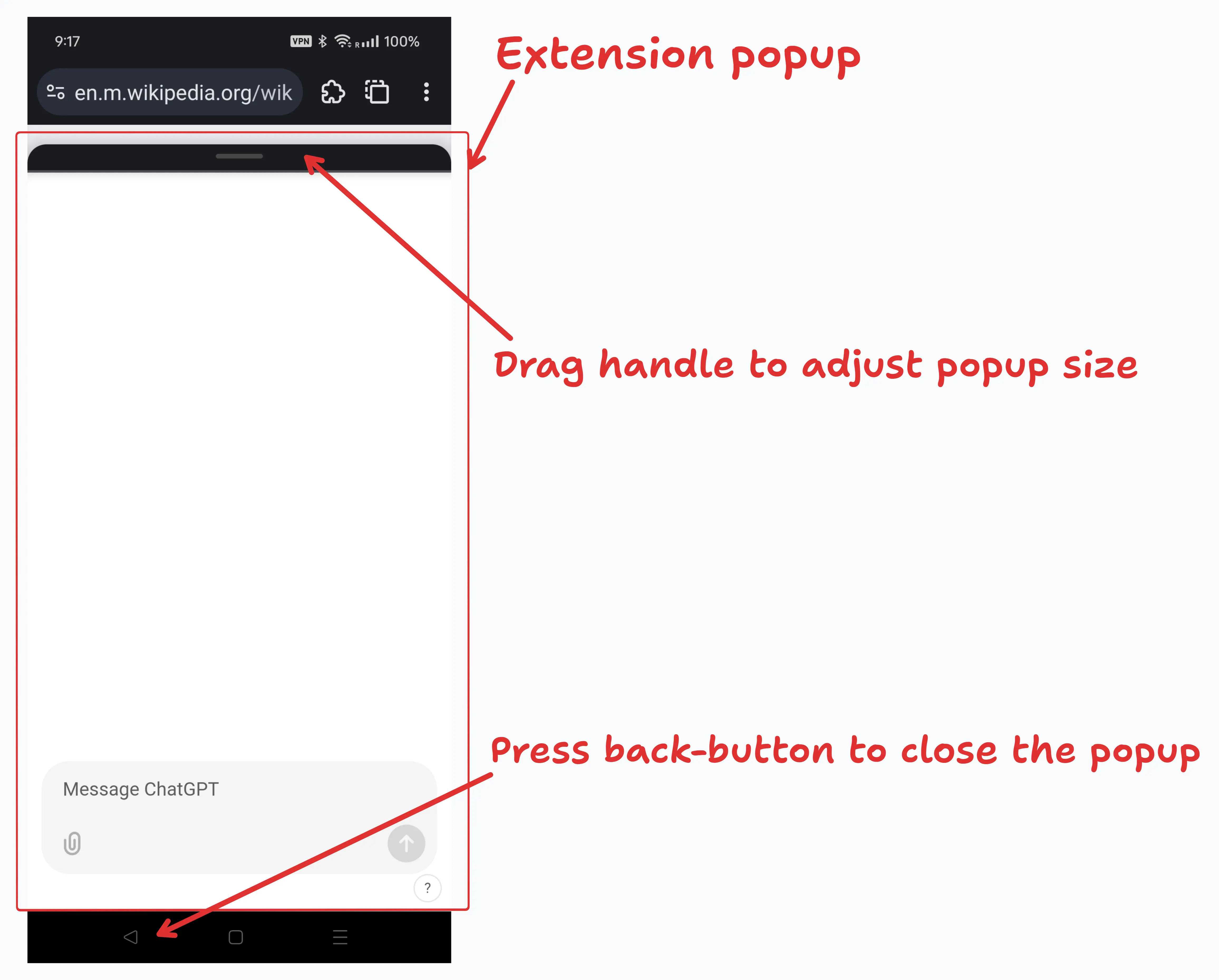
- 🖱️ Drag the handle to resize
- ⬅️ Press Back to close
- If the extension shows a popup at the bottom:
🔎 Can’t find the “add” button on the store page?
- Open the menu (top right) → enable “Desktop mode”, then refresh
🛠️ Troubleshooting
- Extension not responding or buttons don’t work?
- In the extension details, check whether the “service worker” is active
- Disable and re‑enable the extension (or restart the browser)
- Still having issues?
- Contact the extension developer and mention “mobile optimization”
Enjoy many desktop‑grade features on your phone and tablets with HuBrowser! 🚀