
⚡ 4 Ways to quick search
HuBrowser offers 4 convenient ways to quick search from any app!
30-second video demo:
Method 1. use the android widget
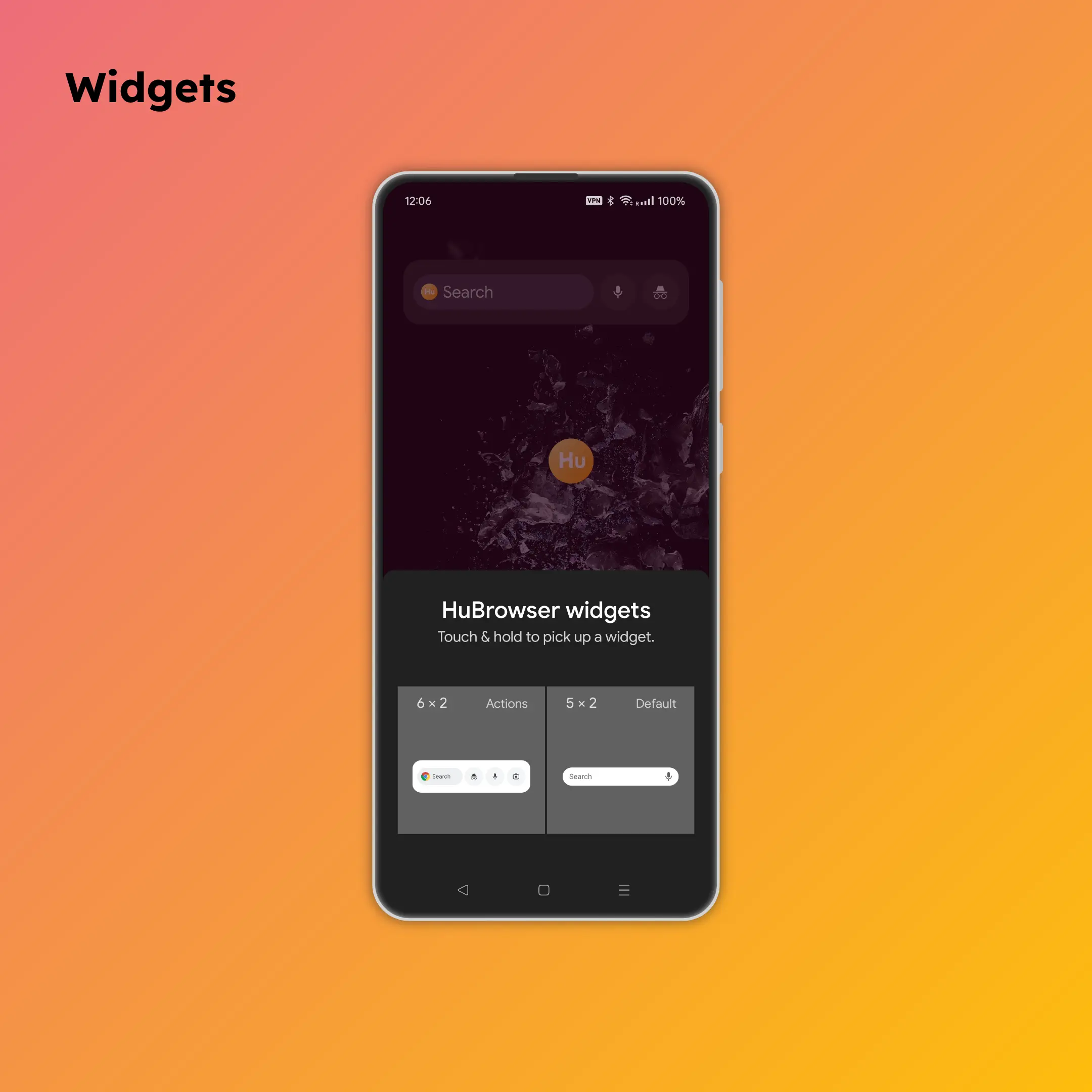
- Add Android widgets to your home screen.
- This step depends on your phone brand. (you may be able to do this by long-pressing the HuBrowser app logo on the home screen.)
- 1-click search by typing or voice.
Many optimizations made this faster than Chrome! See 52-second demo
Method 2. select text -> tap "web search"
- Make HuBrowser the default browser in "Android Settings".
- Afterwards, you can 1-click search whenever you see the
Web searchin the popup menu.
Tip
Upon installation, you'll also be offered a dialog to set HuBrowser as the default browser with 1-click.
Method 3. select text -> tap "share"
- At the bottom of the share menu, you'll see the
HuBrowserlogo. Just tap it!
Tip
for the 1st time, you may need to scroll to the right to find the HuBrowser logo.
You can long press the HuBrowser logo to pin it to the front of the share menu.
Method 4. select text -> tap "copy"
- Long press the "+" icon in HuBrowser to search for the copied text.
- If you copied an URL, it'll be opened.